Chapter 2: Unreal Engine Basic Knowledge
2.1 Unreal Editor Interface
This section explains what the important elements of the Unreal Engine 5.3 interface do. Since the user interface may change when the sub-version of Unreal Engine 5.3 is updated, you may find your interface is slightly different from the one in this section or official documentation. You may also refer to more detailed illustrations on the Unreal Engine website: Unreal Editor Interface1.
Menu Bar
The menu bar contains menus where you can find commonly used commands.

Main Toolbar
The main toolbar contains shortcuts to common tools and editors in Unreal Engine.

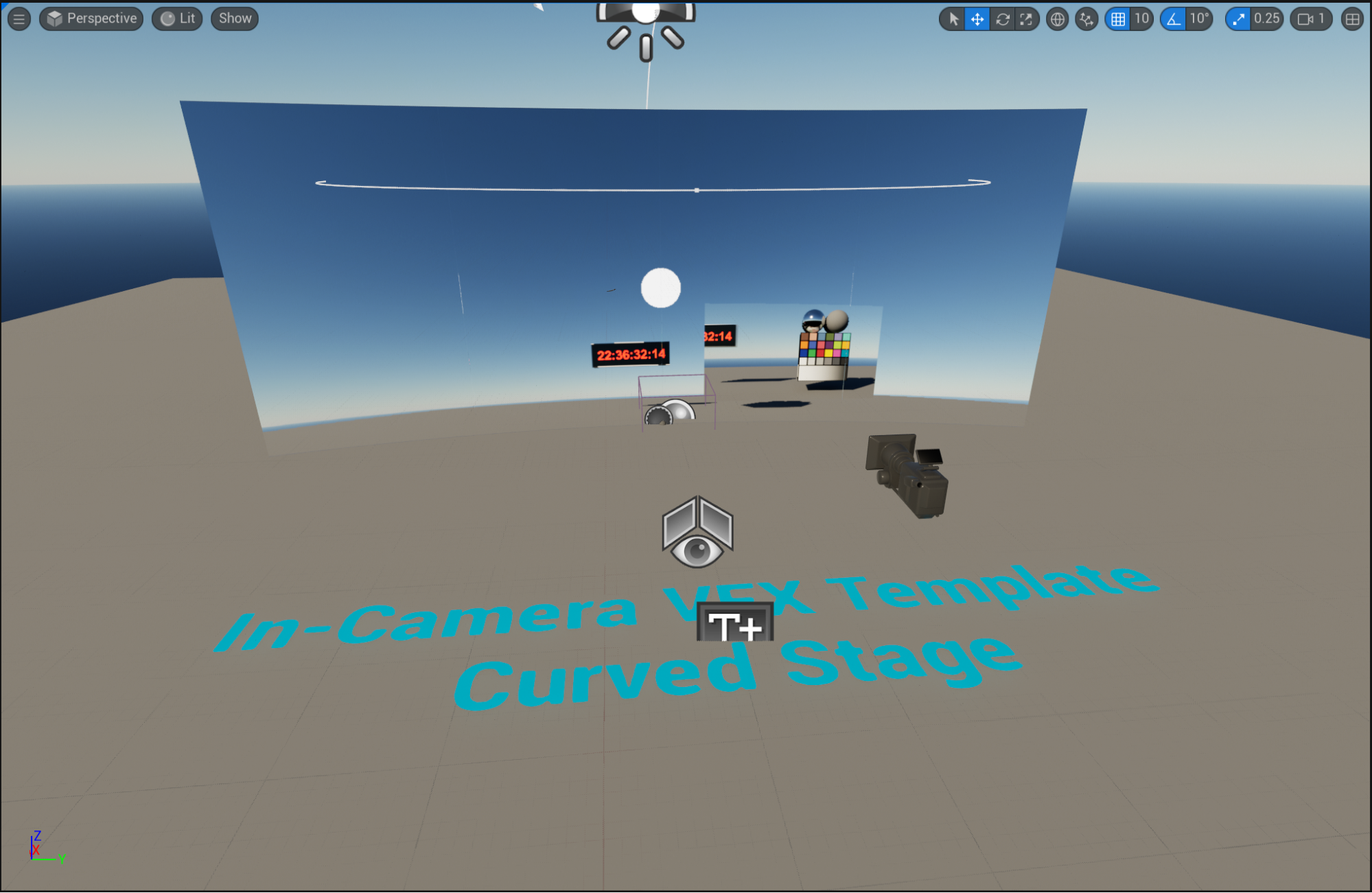
Level Viewport
This displays the virtual world you edit and specifically the contents of the current level.
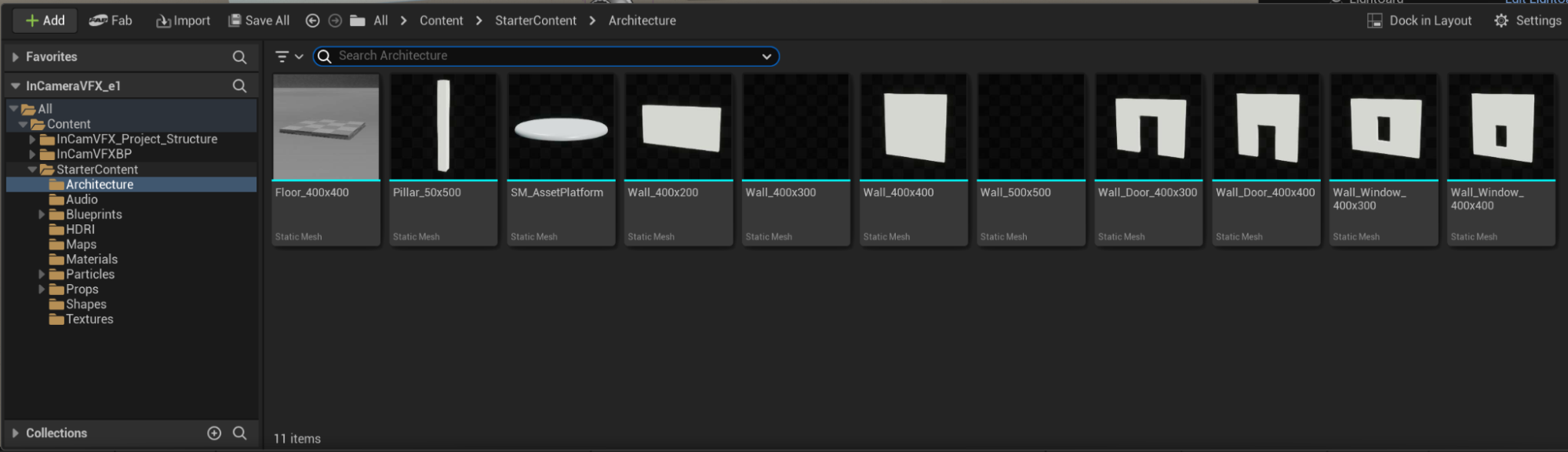
Content Drawer and Content Browser
By clicking the Content Drawer button located at the bottom left corner, you can open an instance of Content Browser. The Content Browser is a file explorer window where you can select and add assets to the stage or project.
Bottom Toolbar
The bottom toolbar shows shortcuts to Output Log, Command Console, Derived Data, and Source Control Status.

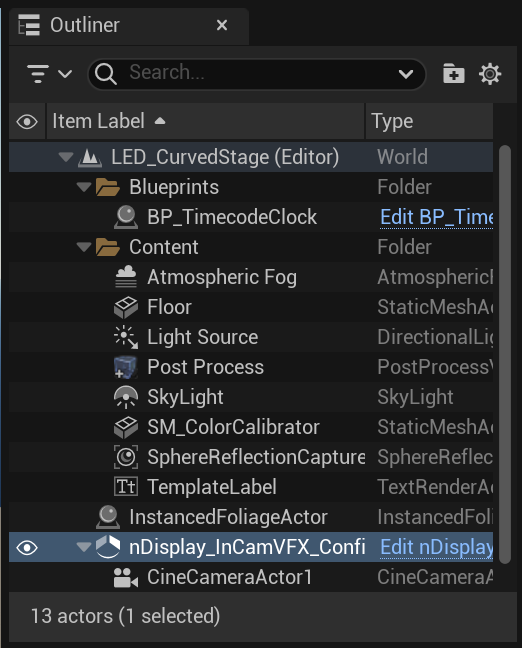
Outliner Panel
This panel is located in the upper-right corner by default, which displays a hierarchical view of all the elements or objects in the current level.
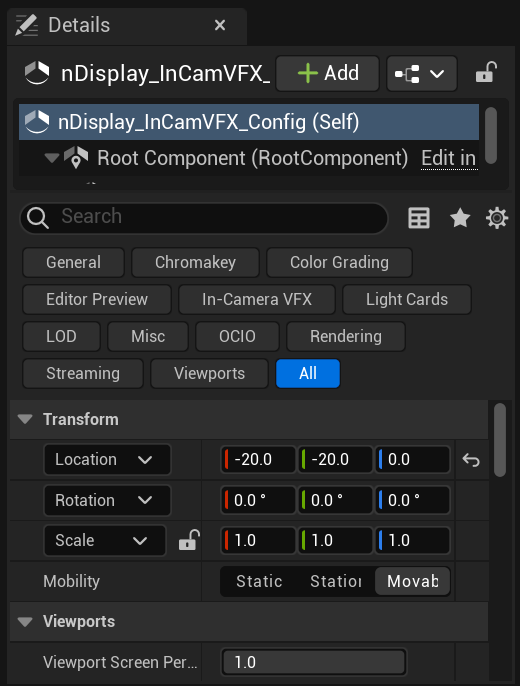
Details Panel
The Details Panel allows you to view and edit the properties of an object selected in the Level Viewport.
2.2 Tools and Editors
This section serves as an introduction to editors and tools that we have used in Unreal Engine based on Unreal Engine documentation. More details can be found at Tools and Editors in Unreal Engine2.
2.2.1 Level Editor
The Level Editor serves as the primary editor for designing and assembling your virtual production environments. When you create or open a project using Unreal Engine, it is opened by default.
2.2.2 Material Editor
The Material Editor is a tool for creating and editing materials that can be applied to properties of objects in a Level.
2.3 Unreal Engine Terminology
This section explains some important terms using Unreal Engine documentation as a reference. For more terms, visit Unreal Engine Terminology3.
- Project: A Project includes all the contents of your virtual scene, such as the assets that make up your virtual scene. You can view the project structure in the directory where you choose to save your project or using the Content Browser panel.
- Actor: An Actor is any object that you can place into the level and interact with it in the virtual scene.
- Level: A Level is a container where you can include everything in a virtual scene and organize your scene, for example, objects like a bed in a hospital room.
- World: A World is the runtime environment that you load Levels into. It maintains global settings across all the Levels and manages the streaming of Levels. For example, if you have different virtual scenes in the same Unreal Engine project as different levels, you can unload or load different scenes to make a transition in virtual production.
- nDisplay (plugin): The nDisplay plugin ensures the virtual scenes are displayed correctly and synchronizes multiple displays or projectors to create immersive environments.
2.4 Licenses Guide for an Unreal Engine Project
2.4.1 Licenses of Project
If you would like to share your project experiences or results online, you may be interested in Creative Commons Licenses4. Creative Commons Licenses (CC Licenses) offer creators a standardized method for legally sharing their work with the public. There are six license types for the CC Licenses. Among all the options, the CC BY license is the fundamental license, which only requires reusers to give attribution to the creator when distributing, remixing, adapting, or building upon the original material in any medium or format. This also means it allows for commercial use.
- CC BY-SA: The license CC BY-SA requires reusers to share their adaptations under the same license.
- CC BY-NC: The license CC BY-NC limits uses of the original work to noncommercial purposes only.
- CC BY-ND: The license CC BY-ND prohibits any derivatives or adaptations of the original work.
In addition to the four licenses explained, the remaining two licenses, CC BY-NC-SA and CC BY-NC-ND, are based on the license CC BY-NC, so they are more restrictive than CC BY-NC.
- CC BY-NC-SA: Similar to CC BY-SA, this license also requires reusers to share the original work under the same terms in addition to restrictions in CC BY-NC.
- CC BY-NC-ND: Similar to CC BY-ND, this license also prohibits any derivatives or adaptations of the original work in addition to restrictions in CC BY-NC.
If the work is shared as open educational resources, it is recommended to avoid the licenses CC BY-ND and CC BY-NC-ND because they violate two core OER principles, “redistribute” and “remix”, by limiting the right to distribute and not allowing users to redistribute modified or remixed work. The most popular CC licenses are CC BY and CC BY-SA.
2.4.2 Licenses of Assets in Unreal Engine Marketplace
The licenses of assets differ depending on their sources. This section introduces the licenses of assets in Fab, the Unreal Engine marketplace. Currently, Fab offers two license types: Creative Commons Attribution (CC-BY) and Standard (Free or For Sale).
- The Standard license has two tiers, the Personal tier and the Professional tier, based on total revenue from commercial activity in the last 12 months.
- The Standard license can also be categorized into Standard License under a Personal - Reference Only tier and Standard License under a Personal or Professional tier.
To decide on the assets under which license to use, consider the purposes of your project and how you will use those assets.
For more details about Licenses in Fab, visit Fab Licenses and Pricing5 and Fab EULA (the latter link is not reproduced as a footnote here).
2.5 Project Directory Structure
This section will only discuss project structure. If you are also interested in the Engine directory, please refer to Unreal Engine Directory Structure6. This section uses an example from the Unreal Engine website as a reference to explain how to adjust your project structure to be more standardized.
2.5.1 Content Browser Folders
- Setup your project folder: Open the Content Browser by clicking the Content Drawer button located at the bottom left corner, and create a new folder inside the Content folder using the + Add button in the top left corner. Name this folder based on your project name. Create some folders such as Assets, Envs, Stages, and StageLevels.
For best practices, visit Recommended Asset Naming Conventions in Unreal Engine Projects7.

To get more details of each folder, visit their individual pages below:
https://dev.epicgames.com/documentation/en-us/unreal-engine/unreal-editor-interface?application_version=5.3 ↩︎
https://dev.epicgames.com/documentation/en-us/unreal-engine/tools-and-editors-in-unreal-engine?application_version=5.3 ↩︎
https://dev.epicgames.com/documentation/en-us/unreal-engine/unreal-engine-terminology?application_version=5.3 ↩︎
https://dev.epicgames.com/documentation/en-us/fab/licenses-and-pricing-in-fab ↩︎
https://dev.epicgames.com/documentation/en-us/unreal-engine/unreal-engine-directory-structure?application_version=5.3 ↩︎
https://dev.epicgames.com/documentation/en-us/unreal-engine/recommended-asset-naming-conventions-in-unreal-engine-projects ↩︎
https://dev.epicgames.com/documentation/en-us/unreal-engine/assets-folder-structure-in-unreal-engine ↩︎
https://dev.epicgames.com/documentation/en-us/unreal-engine/envs-folder-structure-in-unreal-engine ↩︎
https://dev.epicgames.com/documentation/en-us/unreal-engine/media-folder-structure-in-unreal-engine ↩︎
https://dev.epicgames.com/documentation/en-us/unreal-engine/sequences-folder-structure-in-unreal-engine ↩︎
https://dev.epicgames.com/documentation/en-us/unreal-engine/stages-folder-structure ↩︎
https://dev.epicgames.com/documentation/en-us/unreal-engine/stage-levels-folder-structure-in-unreal-engine ↩︎
https://dev.epicgames.com/documentation/en-us/unreal-engine/tools-folder-structure-in-unreal-engine ↩︎